Work through a course
Play lectures, keep your place, take notes, and mark lessons complete.
Open My Learning
Everything you are enrolled in is here, with how far through you are.
Where you end up: My Learning is in the account menu, top right.
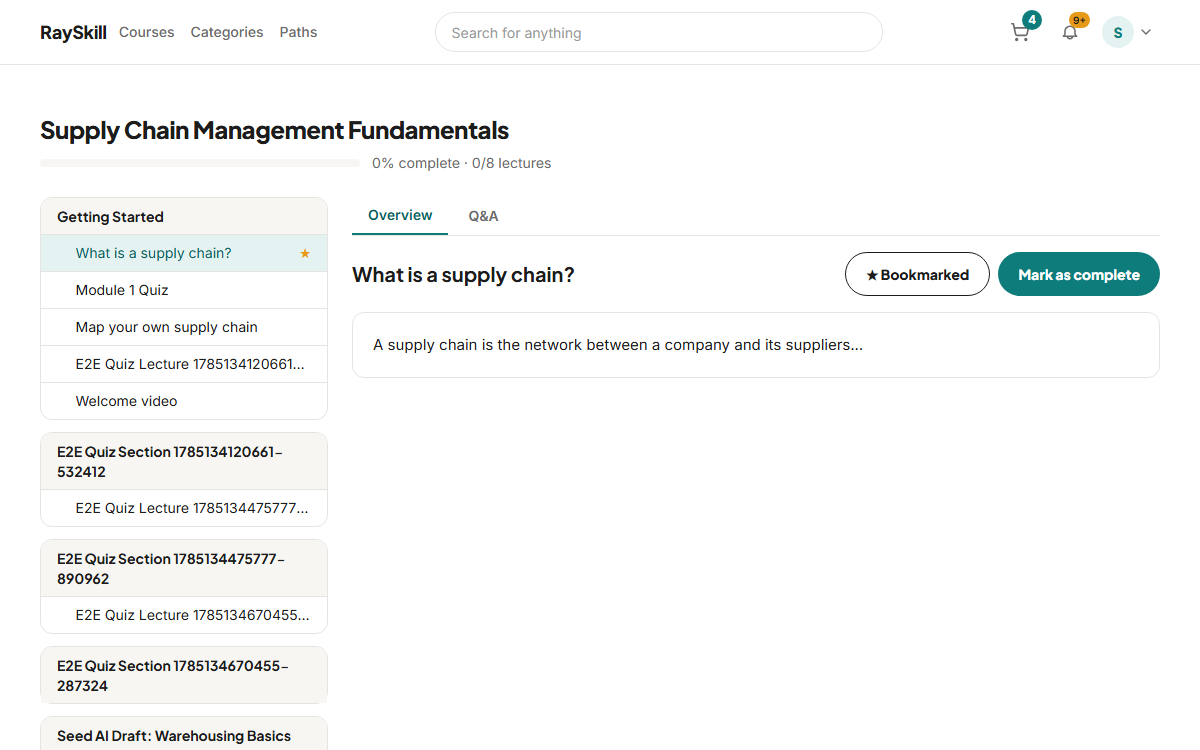
Pick a lecture from the curriculum sidebar
Your position is saved as you go, so closing the tab and coming back later resumes where you stopped.
Mark a lecture complete
Use the Mark as complete button when you finish a lecture. Your course progress percentage is built from these.
Take notes against the video timeline
Notes are saved with the timestamp you were at. Clicking a note later jumps the player back to that moment.
Ask the instructor a question
The Q&A tab on a lecture is public to other learners on the course, so answers help everyone.
For learners — other guides
- Find a course — Browse the catalogue, then narrow it down by level, rating, language, and price.
- Enrol in a course — Preview it first, then enrol — free courses start immediately, paid ones go through checkout.
- Quizzes and practice tests — Short quizzes check a lecture; practice tests rehearse a real, timed exam.
- Certificates and achievements — Finish a course to earn a certificate, and pick up badges along the way.
- Manage your account — Update your profile, choose your language and notifications, and export or delete your data.