Publish your course
Pass the checklist, then wait for a short review before it goes live.
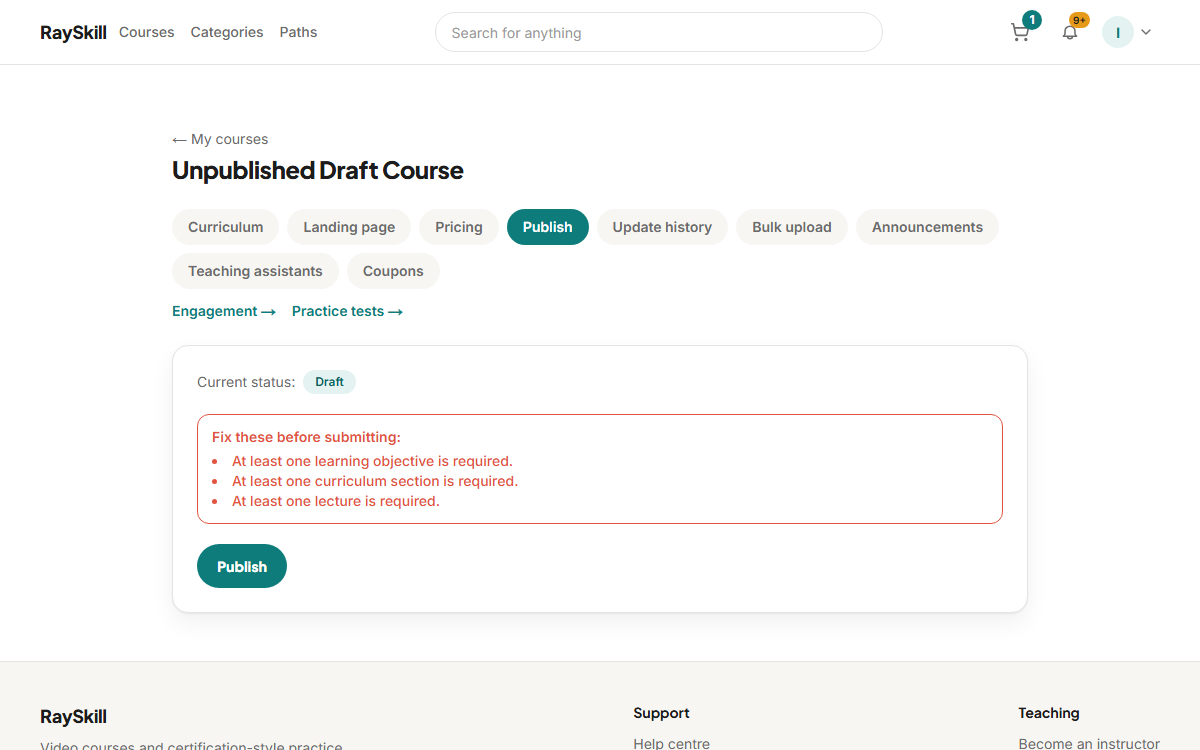
Open the Publish tab and read the checklist
A course needs a title, a description, at least one learning objective, and at least one section containing at least one lecture.
Fix anything listed, then choose Publish
If something is missing you get a specific list rather than a generic error.
Wait for review
Publishing submits the course for a moderation check — it moves to "In review", not straight to the catalogue.
If it comes back for changes
The reviewer's note appears on the Publish tab. Fix what it asks for and submit again.
Editing after publishing
A published course stays live while you edit it. Curriculum changes are versioned, so you can see the history and restore an earlier version.
For instructors — other guides
- Create your first course — Start a draft, then fill in the parts learners see before they buy.
- Build your curriculum — Add sections and lectures — video, articles, quizzes, assignments, practice tests.
- Set your price — Choose a price and currency, add regional prices, and run coupons.
- See how your course is doing — Enrollments, revenue, completion, ratings, and which lectures lose people.
- Answer questions and post updates — Keep up with Q&A, highlight the best answers, and announce changes.
- Understand your earnings and payouts — Where your revenue share comes from, and how money reaches you.